Home Dashboard
Overview
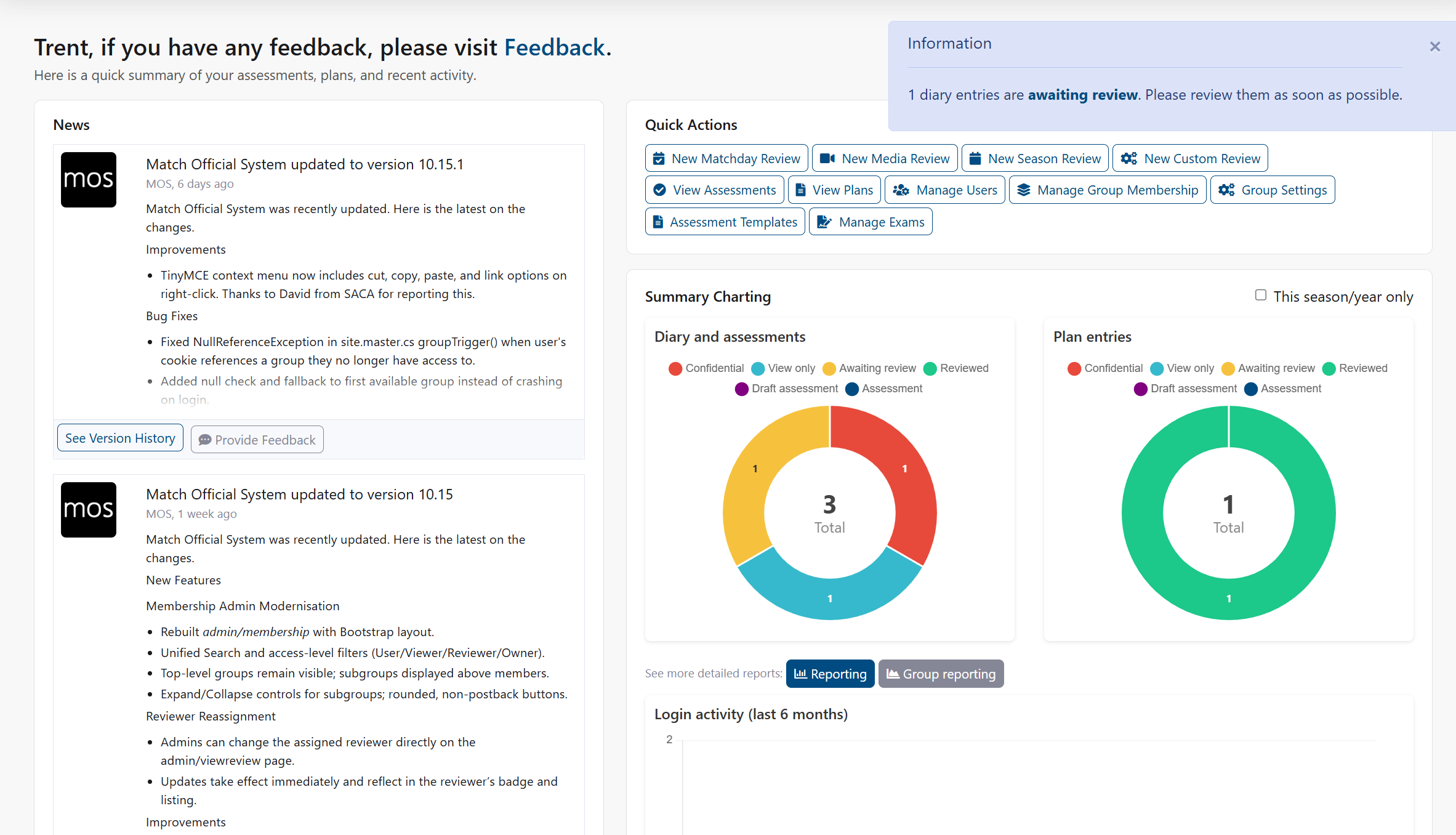
The Home page provides a personalized dashboard showing your welcome message, recent news, quick actions, summary charts, and recent activity. Content adapts based on your role and selected association.
How to Access: Click Home
Page Sections
Welcome Message
- Greets you by name
- Shows important system notices or license information
- Displays current system version number
News Section
- Shows the most recent news articles from your association
- Displays up to 3 recent items
- Click any item to read the full article
Quick Actions
Shortcuts to common tasks:
For All Users:
- New diary entry: Create a new assessment diary entry
- New plan: Create a new training or development plan
For Administrators:
- Additional shortcuts for review and management tasks
- Access depends on your role and selected group
Summary Charts
Visual summaries showing:
- Your assessment and plan statistics
- Login activity
- Optional filter to focus on current season or year
Note
Charts update based on the time period you select
Recent Activity
- Timeline of your recent actions
- Shows diary entries, plans, exams, and reviews
- Click any item to view details
Common Tasks
How to Create a New Diary Entry
- On the Home page, find Quick Actions
- Click New diary entry
- Result: The diary entry form opens
How to Create a New Plan
- On the Home page, find Quick Actions
- Click New plan
- Result: The plan form opens
How to Read a News Article
- On the Home page, find the News section
- Click any article title
- Result: The full article opens with any attachments
How to Filter Charts by Season
- Find the Summary charts section
- Look for the season or year filter option
- Select your preferred time period
- Result: Charts update to show data for the selected period
Note: This option appears when available for your association
How to View Activity Details
- Find the Recent activity section
- Click any activity item
- Result: The full details open
Troubleshooting
Administrator shortcuts do not appear
Symptoms: You do not see admin links in Quick Actions
How to Fix:
- Check which group you have selected
- Verify your role includes administrator access
- Contact your association administrator to confirm your permissions
Common Causes:
- You do not have administrator access for the selected group
- Your role does not include admin features
Charts are empty
Symptoms: Summary charts show no data
How to Fix:
- Try selecting a different time period in the filter
- Check back later after completing some activities
- Verify you have diary entries or plans recorded
Common Causes:
- No activity recorded for the selected time period
- Filters are too narrow
- You have just joined and have no history yet
News section is empty
Symptoms: No news articles appear
How to Fix:
- Navigate to the full News page to see all articles
- Ask your administrator if news has been published
- Verify your membership status
Common Causes:
- No recent news published
- News was published to other subgroups
Related Pages
- News: View all news articles
- Assessments: Manage diary entries and plans
- Profile Management: Update your profile