Admin: Exam Management
Access Level
Trainer or Owner access required
Overview
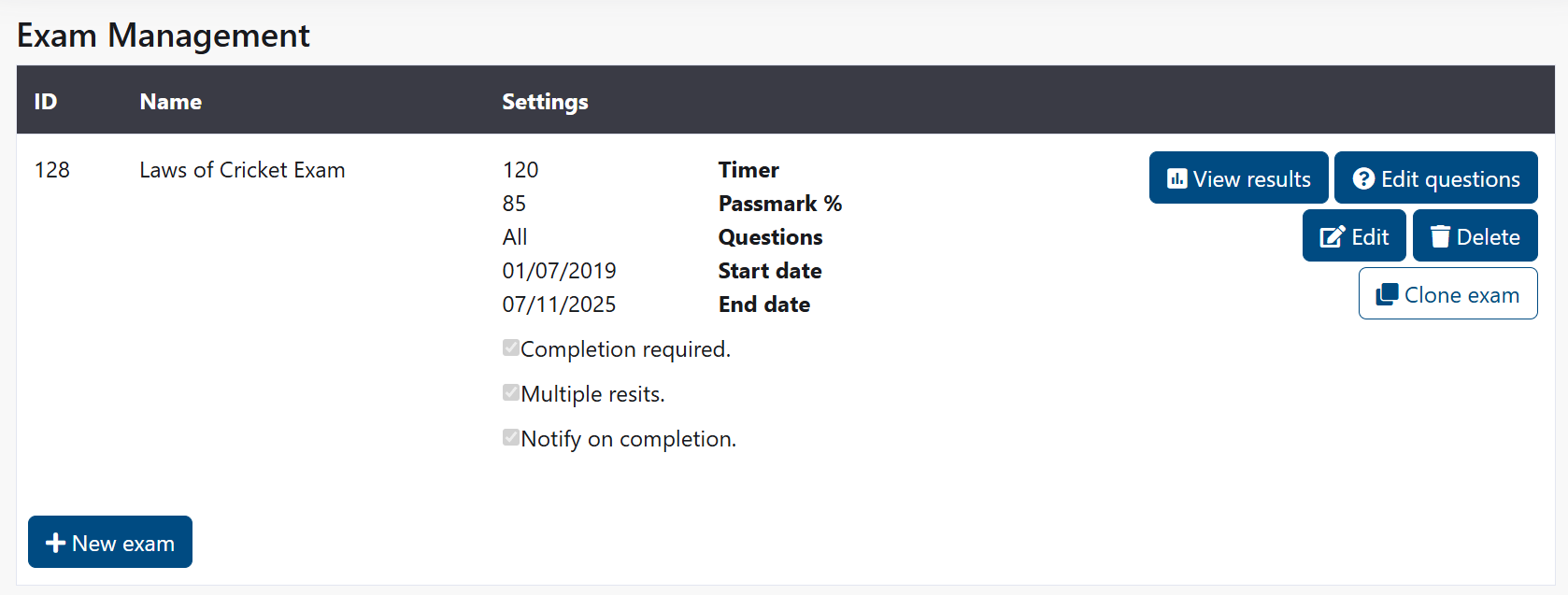
Build and administer exams using reusable question banks. Assign to users or subgroups with time windows and completion requirements. Analyse results and export for records.
Create an Exam
- Click Create New Exam.
- Enter title, description/instructions.
- Add questions (from bank or new) and set order.
- Save as Draft.
Question Types
The system supports three question types:
- Single: Multiple choice with one correct answer.
- Multiple: Multiple select where users select all correct options.
- True/False: Binary true or false question.
Creating Questions
Add questions to build your exam:
- Open the exam and click Add Question.
- Choose a question type: Single, Multiple, or True/False.
- Enter the question text.
- Add answer options and mark the correct answer(s).
- Click Save Question.
Editing Questions
Click the Edit button next to a question to modify its text, options, or correct answer.
Cannot Edit Answered Questions
Once any user has answered a question, the Edit button is disabled. This prevents changes that would invalidate existing attempt records. If the question needs to change, delete it and add a new one in its place.
Deleting Questions
Click the Delete button next to a question to permanently remove it from the exam.
Tips:
- Use clear wording and avoid ambiguity.
- Mix difficulty levels and question types.
- For Multiple type questions, select all correct answers.
Scoring and Settings
When creating or editing an exam, you configure these settings:
Exam Details
Exam Name, required - A short name to identify the exam - Displayed to users before they begin
Questions to Present, required
- How many questions to randomly select from the total pool
- Set to 0 to include all questions
- Helps create randomised tests from a larger question bank
Timing
Time Limit - Time in minutes to complete the exam - Set to 0 for no time limit - Users see a countdown timer during the exam - When time expires, the exam automatically submits
Start Date - The date the exam opens for users - Users cannot sit the exam before this date - Leave empty to open immediately
End Date - The date the exam closes - Users cannot sit the exam after this date - Affects "Completion required" enforcement
Scoring
Pass Mark %, required - Minimum score percentage required to pass (1-100) - Displayed to users before they begin the exam - Used to determine pass/fail badge on results
Completion
Completion Required - When enabled, users must sit this exam before the end date - Blocks other workflows until completed (use sparingly) - Creates a "must complete" flag visible to users
Allow Resits - When enabled, users can retake the exam after a failed attempt - When disabled, users may only sit the exam once
Notify on Completion - When enabled, group administrators receive an email when someone completes the exam - Useful for tracking high-stakes or mandatory exams
Descriptions
Exam Description - Text shown to users before they begin the exam - Use for instructions, tips, or context - Appears in the "Ready to start?" modal
Exam End Description - Text shown to users after they submit the exam - Use for encouragement, next steps, or feedback instructions - Appears in the completion modal
Publish and Assign
- Set exam to Published when ready.
- Assign to individual users, subgroups, or entire group.
- Configure availability window and reminders.
- Notify assignees by email (if enabled).
Monitor and Results
- Attempts: Started vs. completed counts.
- Scores: Individual and average scores; pass/fail.
- Question analysis: Difficulty index, most missed items (where available).
- Export: Download results to CSV for archiving/audits.
Troubleshooting
- Users can’t see exam: Check publish state, assignment scope, and date window.
- Results missing: Ensure attempts were submitted; check filters.
Tips
- ✅ Pilot exams with a small group first.
- ✅ Mix question types to test understanding, not memorisation.
- ✅ Keep instructions clear and include expected duration.