Home Dashboard
Overview
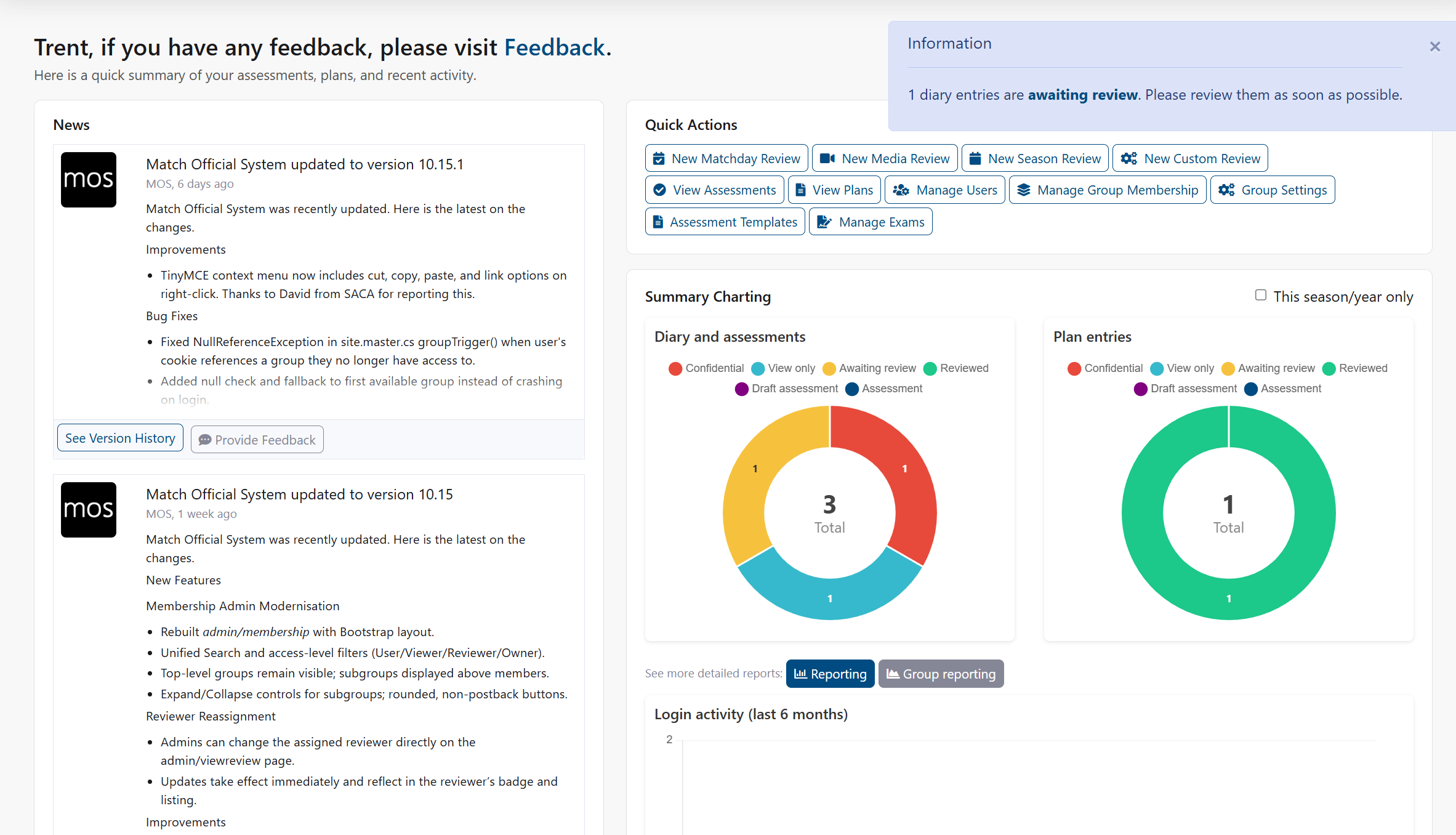
The Home page provides a personalized dashboard showing your welcome message, recent news, quick actions, summary charts, and recent activity. Content adapts based on your role and selected association.
How to Access: Click Home
Page Sections
Welcome Message
- Greets you by name
- Shows important system notices or license information
- Displays current system version number
News Section
- Shows the most recent news articles from your association
- Displays up to 3 recent items
- Click any item to read the full article
Quick Actions
Shortcuts to common tasks:
For All Users:
- New diary entry: Create a new assessment diary entry
- New plan: Create a new training or development plan
For Administrators:
- Additional shortcuts for review and management tasks
- Access depends on your role and selected group
Summary Charts
Visual summaries showing:
- Your assessment and plan statistics
- Login activity
- Optional filter to focus on current season or year
Note
Charts update based on the time period you select
Depth Coverage (administrative access)
This card appears on the Home page for users with administrative access. It summarises grade coverage for the current season to date, or the last completed season when current-season results are unavailable. For the current season, scores are prorated.
The card shows the number of grades with results, whether coverage is healthy or needs attention, and tier counts for up to six grades. Each grade shows its coverage status and effective Match Ready count. Click a grade to open its Grade Chart. If a grade needs attention, open Depth Charting to review the full coverage summary and rankings.
Recent Activity
- Timeline of your recent actions
- Shows diary entries, plans, exams, and reviews
- Click any item to view details
Common Tasks
How to Create a New Diary Entry
- On the Home page, find Quick Actions
- Click New diary entry
- Result: The diary entry form opens
How to Create a New Plan
- On the Home page, find Quick Actions
- Click New plan
- Result: The plan form opens
How to Read a News Article
- On the Home page, find the News section
- Click any article title
- Result: The full article opens with any attachments
How to Filter Charts by Season
- Find the Summary charts section
- Look for the season or year filter option
- Select your preferred time period
- Result: Charts update to show data for the selected period
Note: This option appears when available for your association
Review Depth Coverage (administrative access)
- On the Home page, find Depth Coverage.
- Review the season label and the coverage status for each listed grade.
- Click a grade to open its Grade Chart.
- To review all grades and season rankings, click Depth Charting.
- Result: The grade chart opens for the selected grade and season.
How to View Activity Details
- Find the Recent activity section
- Click any activity item
- Result: The full details open
Troubleshooting
Administrator shortcuts do not appear
Symptoms: You do not see admin links in Quick Actions
How to Fix:
- Check which group you have selected
- Verify your role includes administrator access
- Contact your association administrator to confirm your permissions
Common Causes:
- You do not have administrator access for the selected group
- Your role does not include admin features
Charts are empty
Symptoms: Summary charts show no data
How to Fix:
- Try selecting a different time period in the filter
- Check back later after completing some activities
- Verify you have diary entries or plans recorded
Common Causes:
- No activity recorded for the selected time period
- Filters are too narrow
- You have just joined and have no history yet
Depth Coverage is empty or unavailable
Symptoms The card says there are no depth results, or that coverage is temporarily unavailable.
How to Fix
- If the current season has just started, check again after depth results have been calculated.
- Open Depth Charting > Overview to review coverage and rankings.
- Contact your organisation owner if results remain unavailable.
Common Causes
- No depth results have been calculated for the displayed season
- Coverage could not be loaded; refresh the Home page and try again
News section is empty
Symptoms: No news articles appear
How to Fix:
- Navigate to the full News page to see all articles
- Ask your administrator if news has been published
- Verify your membership status
Common Causes:
- No recent news published
- News was published to other subgroups
Related Pages
- News: View all news articles
- Assessments: Manage diary entries and plans
- Profile Management: Update your profile
- Admin: Depth Charting Overview: Review rankings, career progression, and full grade coverage