Exams
Access Level
All users can sit exams. Exam management requires Trainer or Owner role.
Overview
Complete exams that have been assigned to you. Answer questions, submit your responses, and view your results. Exams may be graded automatically or by your administrator.
How to Access: Click Assessments then Exams
Finding Your Exams
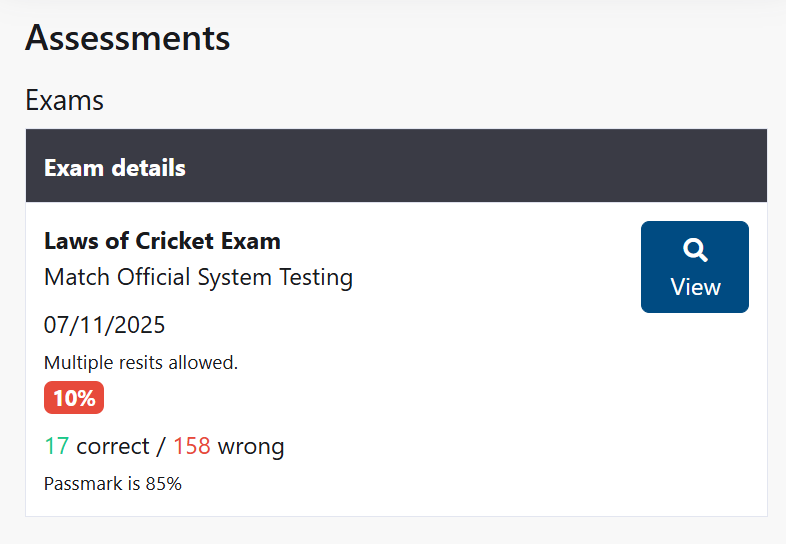
- Open Assessments → Exams
- You see a list of exams assigned to you
- Exams show the title, due date, status, and actions available
Exam Status:
- Not Started: You haven't opened this exam yet
- In Progress: You started but didn't finish
- Submitted: You completed and submitted the exam
- Results Available: Your score and feedback are ready to view
How to Start and Complete an Exam
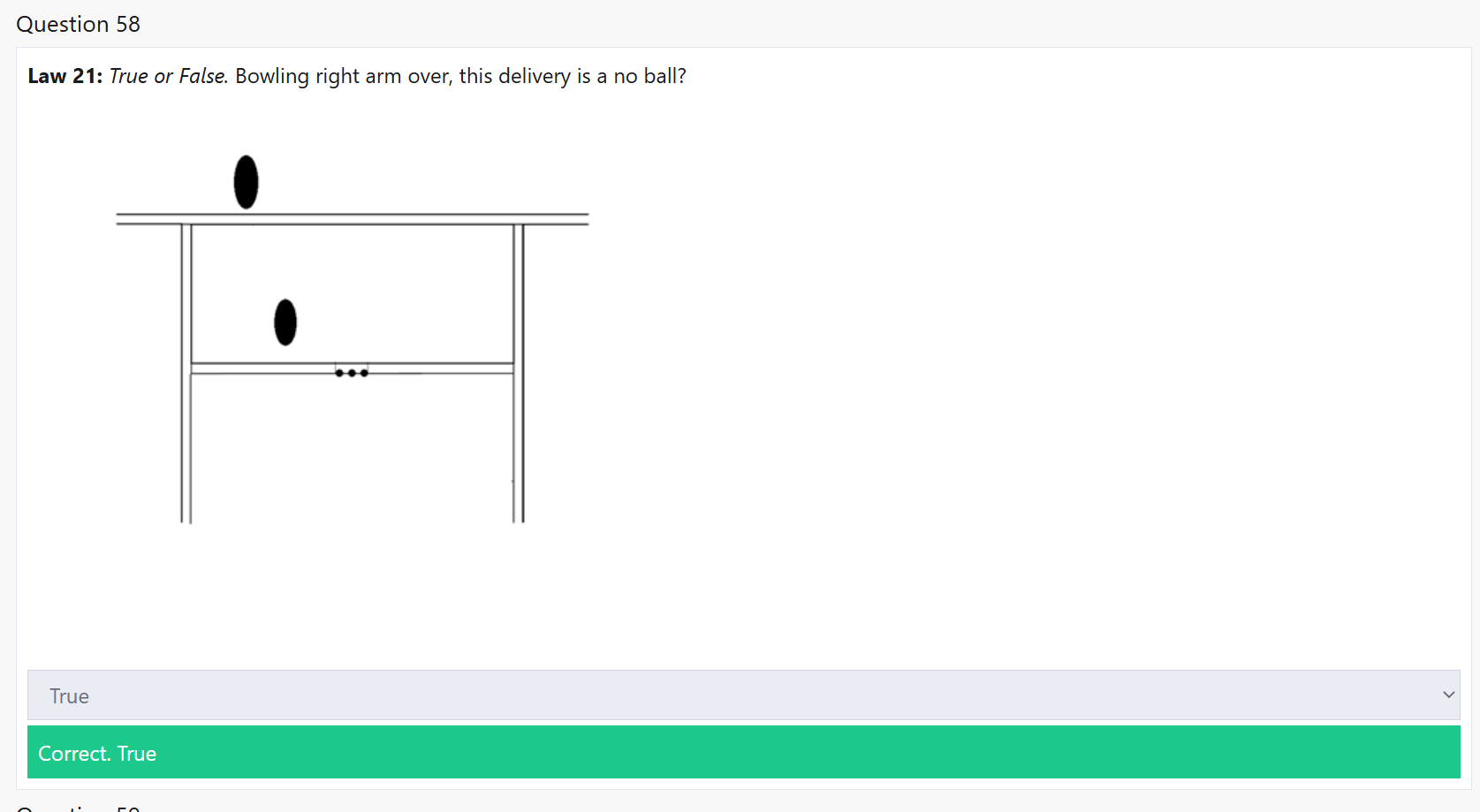
Starting the Exam
- Find your exam in the list
- Click Start or Resume (if continuing from in progress)
- A modal window shows the exam name and instructions
- Click Start exam to begin
During the Exam
The exam screen shows:
- Question number buttons at the top - click any number to jump to that question
- Previous and Next buttons - navigate between questions
- Countdown timer - shows remaining time in minutes and seconds
- Pass mark - the score needed to pass this exam
- Question content - read carefully and select your answer
Answering Questions
- Read the question carefully
- Select your answer based on the question type:
- Single choice: Click one correct option
- Multiple choice: Check all correct answers
- True/False: Select True or False
- Your answer is marked automatically as you select it
Moving Through the Exam
You can navigate in several ways:
- Click a question number at the top to jump directly to that question
- Click Previous to go back to the previous question
- Click Next to move to the next question
- Use arrow keys on your keyboard: Left arrow = Previous, Right arrow = Next
- The buttons disable when you reach the first or last question
Submitting Your Exam
- When you finish all questions, click Submit exam
- Your answers are submitted
- If the exam is auto-graded, you see your score immediately with a pass/fail result
- You may be offered the chance to See answers or Resit exam (if allowed)
Tips:
- Take your time; questions may require careful reading
- Watch the countdown timer to pace yourself
- Use the question number buttons to review answers before submitting
- Ensure a stable internet connection before starting
- Avoid closing the browser or navigating away mid-exam
Exam Results
After submitting your exam:
- Your Score displays immediately if auto-graded
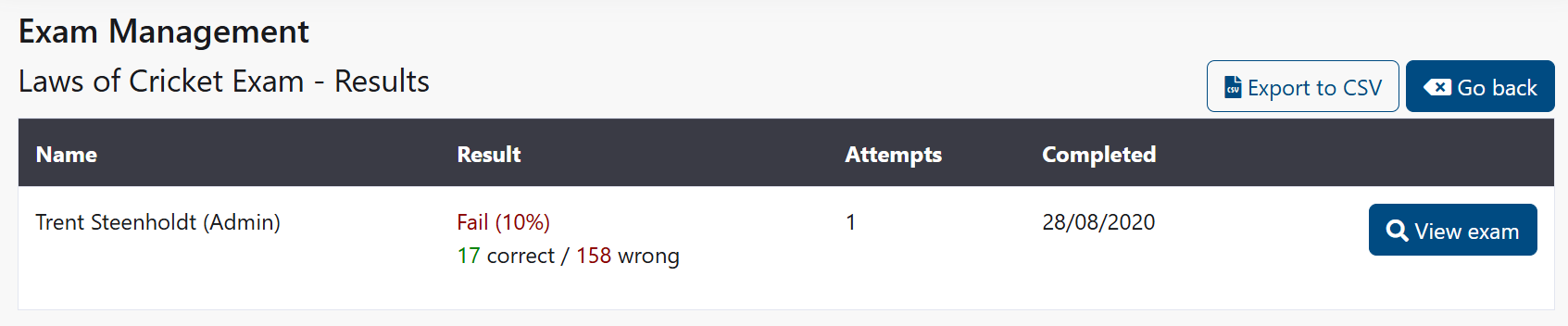
- A Pass/Fail badge shows whether you achieved the pass mark
- The score shows both your percentage and raw score (points earned vs. total available)
- Some exams include explanations for correct answers
- Your administrator may publish additional feedback or comments
How to Review Past Results
- Go to Assessments → Exams
- Look for Previous Results or Completed section
- Click an exam to view your score and details
- Review any feedback or explanations provided
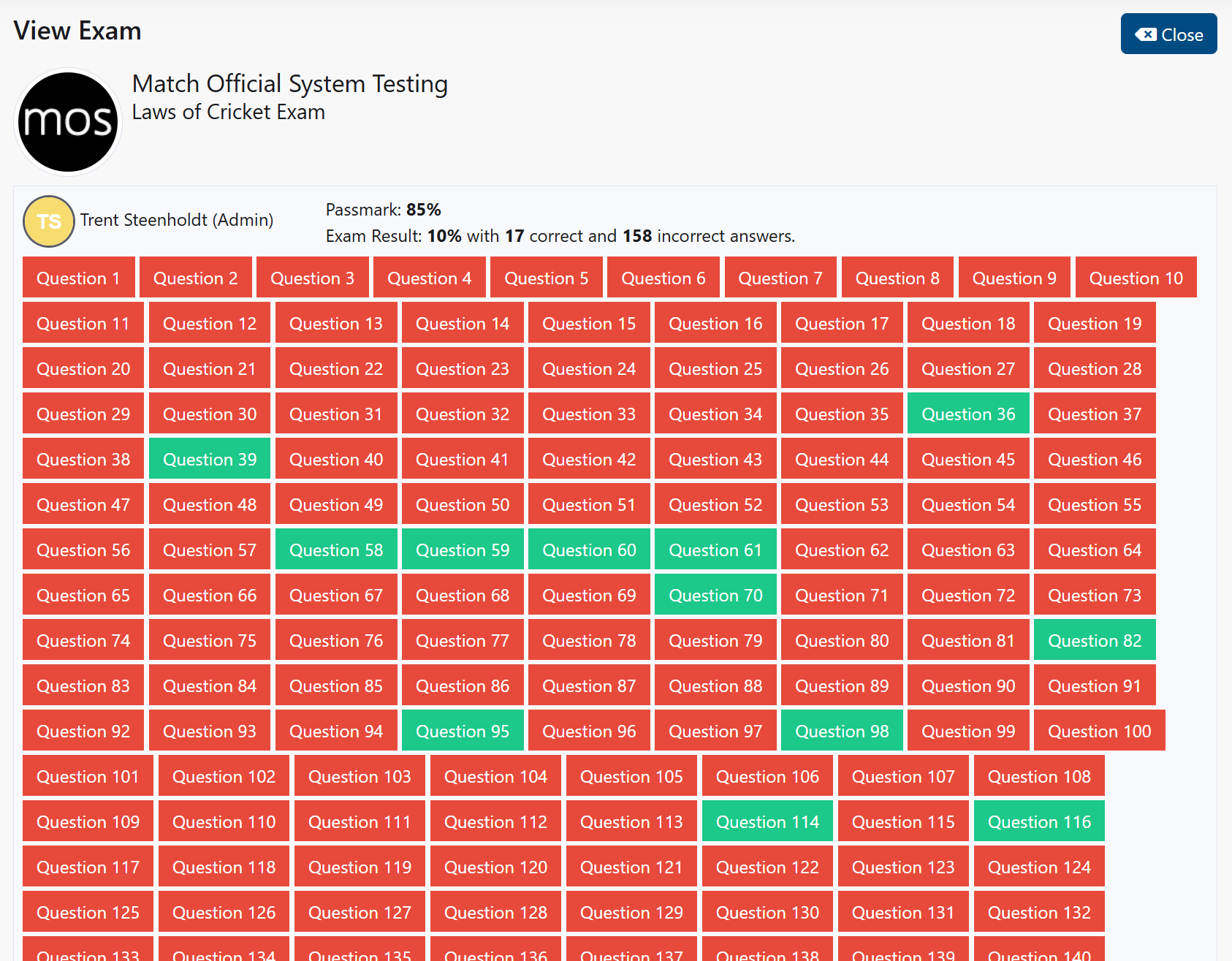
- Questions are marked as correct or incorrect
- You can see all your answers side by side with the correct answers
Common Tasks
Retake an Exam (if allowed)
- Go to Assessments → Exams
- Find the exam you want to retake
- If a Retake button appears, click it
- Complete the exam again following the steps above
- Submit your new responses
Note
Not all exams allow retakes. Check with your administrator if you're unsure.
Check Pass Mark and Attempts
- Open the exam details or look at the exam list
- Review Pass Mark and Maximum Attempts (if shown)
- If uncertain, contact your administrator
Understand Your Score
After your exam is marked, you see:
- Percentage Score: Your percentage of correct answers
- Raw Score: Total points earned vs. total available
- Pass/Fail: Whether you achieved the required pass mark (shown as a badge)
- Individual question review: See which answers were correct and which were incorrect
Troubleshooting
Exam will not start
Symptoms: The Start button is grayed out or doesn't work
How to Fix:
- Verify you have an assigned exam
- Check the exam availability window (it may not be open yet)
- Check your internet connection
- Log out and back in, then try again
- Try a different browser
- Contact your administrator if the issue persists
Common Causes:
- Exam window not yet open
- Exam window has closed
- You don't have access to this exam
- Browser/connection issue
Answers not saving
Symptoms: Your responses disappear when you move to the next question
How to Fix:
- Wait for pages to load fully before clicking Next
- Avoid using the browser Back button
- Check your internet connection
- If the problem repeats, report it to your administrator immediately
Common Causes:
- Network connectivity issue
- Page didn't load completely
- Using browser navigation while exam is loading
Unexpected logout during exam
Symptoms: You're logged out and sent to the login page during the exam
How to Fix:
- Log back in with your credentials
- Return to Assessments → Exams
- Your progress may have been saved; click Resume to continue
- If progress didn't save, contact your administrator
Common Causes:
- Session timeout due to inactivity
- Network issue causing logout
- System maintenance
Can't submit the exam
Symptoms: Submit button is grayed out or doesn't work
How to Fix:
- Verify you have answered the questions you want to submit
- Click Submit exam button in the top right
- Check your internet connection
- Try again in a few moments
- Contact your administrator if submission fails repeatedly
Common Causes:
- Network connectivity issue
- Page didn't load completely
- System timeout
Time running out
Symptoms: The countdown timer shows you only have a few seconds left, or displays "Time is up!"
How to Fix:
- If time is running out, finish answering your remaining questions
- If time has run out, a modal appears automatically
- Click Submit exam in the modal to save your responses
- Any answered questions will be graded based on your answers
- Unanswered questions will count as incorrect
Tips:
- Watch the countdown timer throughout the exam
- Pace yourself to ensure you complete as many questions as possible
- The timer shows both minutes and seconds remaining
Related Pages
- Assessments and Reviews: Manage your other assessments
- Reports: View your exam trends and pass rates