Sign In: Access Your Account
Access Level
Public (before authentication)
Overview
Sign in to access your Match Official System account using your email address. Authentication is handled entirely by Microsoft Azure AD B2C — there is no separate MOS sign-in page.
How to Access: Go to matchofficialsystem.com and you are redirected to Azure AD B2C to sign in.
Note
If you do not have an account, contact your association administrator for an invitation
How to Sign In
- Go to matchofficialsystem.com
- You are immediately redirected to Microsoft Azure AD B2C
- Enter your email address (or username)
- Click Next
- Enter your password
- Optional: Check Keep me signed in to stay signed in longer (up to 3 months on trusted devices)
- Click Sign In
- Result: You are authenticated and returned to Match Official System
After Sign In:
- You are taken to the Home page
- Your session is active for 50 minutes of inactivity
Fields (in Azure AD B2C):
- Email Address (required): Your registered email address or username
- Password (required): Your account password
- Forgot my password: Click to start password recovery (see Forgot Password below)
- Keep me signed in (optional): Extends your session to 3 months on trusted devices
Errors:
- "Account not found": Check for typos in your email; try your username
- "Incorrect password": Verify Caps Lock is off; try password recovery
- Account temporarily locked: You may have entered incorrect password multiple times — wait a few minutes and try again
Keep Me Signed In
When you check Keep me signed in in Azure AD B2C, your session is extended.
How it works:
- Your session extends to 3 months on the current device
- Uses secure cookies to maintain authentication
- Your login status is preserved across browser sessions
When to use it:
- On your personal computer
- On your personal phone
- When you use the system frequently
- On devices you trust
When NOT to use it:
- On shared computers
- On public computers (libraries, airports, schools)
- When using someone else's device
- On computers at work shared with others
Security: Your authentication is protected by Microsoft Azure AD B2C enterprise security.
Session Timeout
Your session ends automatically after a period of inactivity to protect your account.
What happens:
- After 50 minutes of inactivity, your session expires
- You are automatically signed out
- Unsaved changes can be lost if your session expires
How to stay signed in:
- Check Keep me signed in in Azure AD B2C when signing in (3 month session)
- Actively use the system (refresh activity timer)
- Save your work regularly
If you're signed out:
- Go to matchofficialsystem.com
- Sign in with your email and password
- You'll be returned to the system
Tip: Save your work regularly to avoid losing changes when your session ends.
Forgot Your Password
If you forget your password, you can reset it.
How to Reset Your Password
- On the sign-in page, click Forgot my password
- Enter your email address
- Click Next
- You'll be directed to a secure password reset process
- Follow the on-screen instructions to create a new password
See Forgot Password for detailed instructions.
Account Lockout
If you enter the wrong password several times, your account may be temporarily locked for security.
If Your Account Is Locked
- Wait a few minutes before trying again
- Your account will automatically unlock
- Try signing in again with the correct password
- If locked again, use Forgot my password to reset
- Contact your administrator if you need immediate help
Why this happens: Multiple failed password attempts trigger a temporary security lockout to protect against brute force attacks. This is normal and your account automatically recovers.
Maintenance Mode
During scheduled maintenance, you may not be able to sign in.
What you see:
- A maintenance notice on the sign in page
- A message preventing you from signing in
What to do:
- Wait and try again later
- Check association communications for updates
Signing Out
When you're finished using the system, sign out to protect your account.
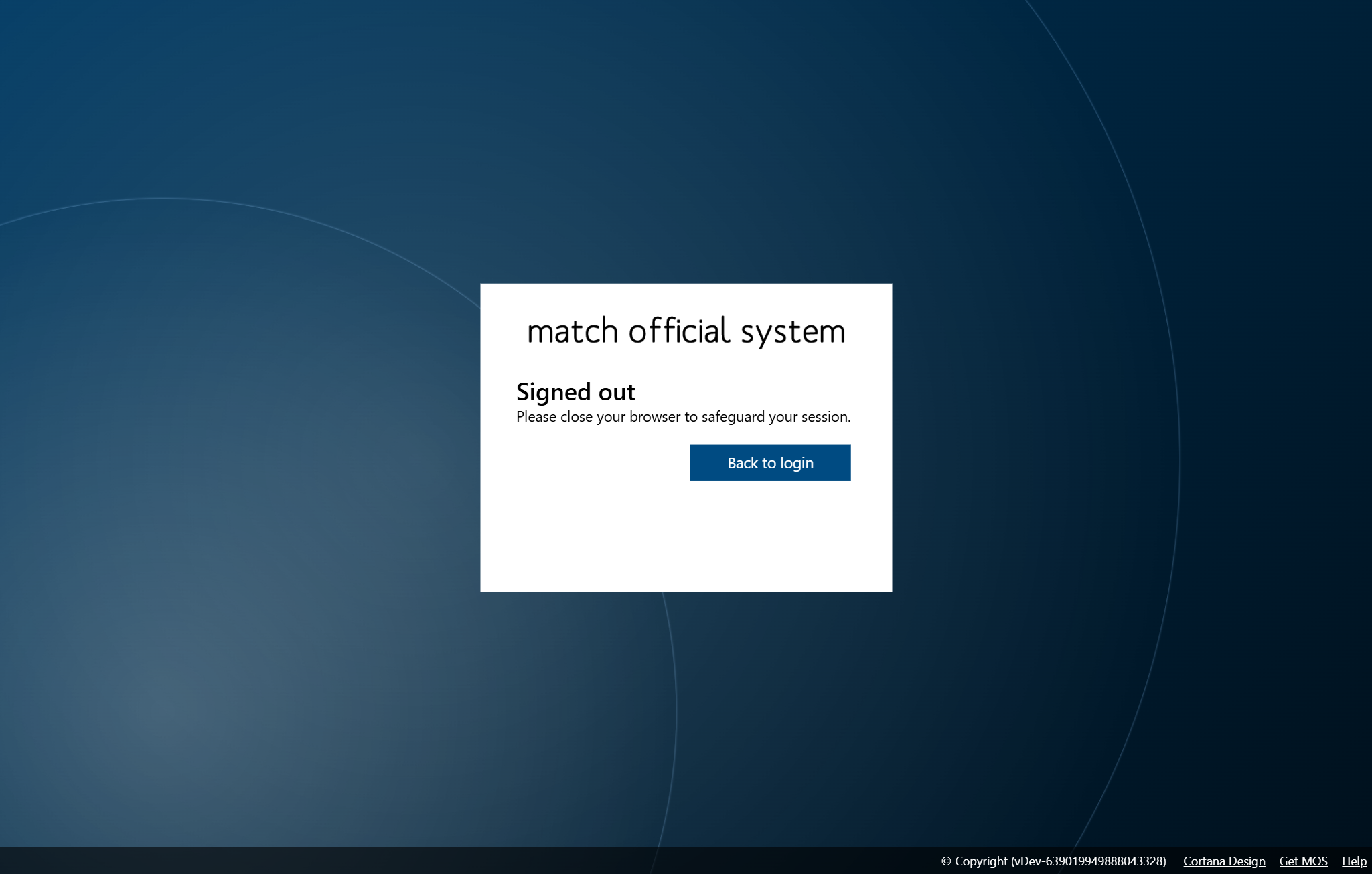
How to Sign Out:
- Click your profile name or avatar in the top-right corner
- Click Sign Out
- Result: You are signed out and return to the sign-in page
Troubleshooting
Can't sign in
- Use Forgot my password to reset your password
- Check your Caps Lock is off
- Verify there are no extra spaces before or after your username
- Clear your browser cookies and try again
Don't know your username
- Contact your association administrator to confirm your username
- Use Forgot my password if you prefer to reset
New device not recognised
- Complete sign-in normally
- If prompted, verify your email address
- You may need additional verification on first login from a new device
Page loops after sign-in
Symptoms: You sign in but return to the login page
How to Fix:
- Clear your browser cookies and cache
- Try a different browser
- Try disabling browser extensions
- Contact your administrator if the problem continues
Still can't sign in
- Verify you have an active account with your association
- Check your internet connection is stable
- Try the system on a different network
- Contact your administrator for help
Tips
- ✅ Use a password manager for strong, unique passwords
- ✅ Enable email notifications and keep your email updated
- ✅ Log out from shared devices after each session
- ❌ Don't use "Keep me signed in" on shared devices
- ❌ Don't share your password with anyone
Related Pages
- Register: Create a new account with an invitation
- Forgot Password: Reset your password
- Update Email: Change your email address
- Linked Accounts: Link Microsoft or Google accounts for easier sign-in