Register: Create Your Account
Access Level
Public (with invitation link required)
Overview
Registration uses Microsoft Azure AD B2C to create your account securely. You'll receive an invitation link from your association, then set up your account through a simple process.
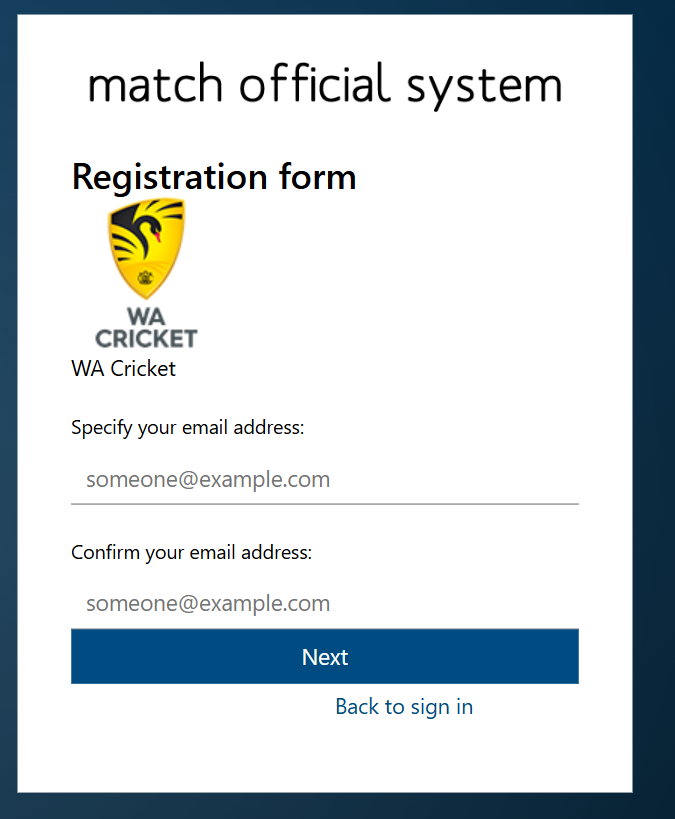
How to Access: Click the registration link in your invitation email
Warning
You cannot self-register without an invitation link. Contact your association administrator if you need access
Before You Start
Requirements:
- Valid email address (personal or work)
- Registration link from your association administrator
- Access to your email for account creation
How you'll receive your link:
Your administrator will share the link via:
- Chat or messaging app
- Document or shared workspace
- Phone or in-person meeting
- Any method your administrator chooses
Understanding the Registration Process
Invitation Links
Your association administrator generates registration links when they want to allow people to sign up. Each link is unique to your group and doesn't expire.
Important: If your administrator disables and then re-enables registrations, the link changes. Ask your administrator for the current link.
Group Association
When you click the registration link, you'll see your association's:
- Group logo
- Association name
- Group information
This confirms you're registering for the correct organisation.
How to Register
Step 1: Get Your Registration Link
Your association administrator will provide you with a registration link. They may share it by:
- Team messaging platform (Slack, Microsoft Teams, etc.)
- Document or shared drive
- SMS or phone call
- In person
The registration link is unique to your group and typically looks like this:
https://matchofficialsystem.com/register?ID=YourUniqueGroupCode
For example:
https://matchofficialsystem.com/register?ID=951a632a-1e4d-4368-89e7-776c08b10acd
Step 2: Click Your Registration Link
- When you're ready to register, click the registration link your administrator shared
- Your browser opens the MOS registration page
- You'll see your association's logo and name, confirming you have the correct link
- Click Next to begin registration
- You'll be redirected to Microsoft Azure AD B2C to create your account
If Your Link Doesn't Work:
- Your administrator may have disabled registrations and then re-enabled them (this changes the link)
- Contact your association administrator for the current link
- They can provide you with the updated registration link
Step 3: Create Your Account in Azure AD B2C
You're now in Microsoft Azure AD B2C, which handles account creation securely.
Enter Your Email:
-
Enter your email address
- Use an email you have permanent access to
- Can be personal (gmail.com, outlook.com) or work email
- Example: firstname.lastname@company.com
-
Create a password
- Minimum 8 characters
- Include uppercase letters (A-Z)
- Include lowercase letters (a-z)
- Include numbers (0-9)
- Symbols recommended (!@#$%)
- Example:
MySecure123!Pass
Important: Your email and password are used to sign in every time. Remember them.
-
Provide your name
- Given Name: Your first/given name
- Surname: Your family/last name
-
Click Create to complete account creation
What happens next:
- Your account is created in Azure AD B2C
- You're automatically signed in
- You're returned to Match Official System
- You're taken to the Home page
Step 4: Welcome to Match Official System
You're now signed in and can:
- View the Home dashboard
- Access news and announcements
- Start assigned work
- Explore the system
Next Steps:
- Update Your Profile: Click My Account → Update Profile to add details like address and phone number
- Change Your Password: Click My Account → Change Password if you want a different password
- Contact Your Administrator: If you need help or have questions about your access level
Troubleshooting
Registration Link Issues
Problem: Registration link doesn't work
What to try:
-
Check the URL:
- Ensure you copied the entire link correctly
- Check for spaces or line breaks if pasted from email or another source
- Try clicking the link directly instead of copying and pasting
-
Link Changed:
- If your administrator disabled and then re-enabled registrations, the link changes
- Ask your administrator for the current registration link
- They can provide you with the updated link immediately
-
Group No Longer Exists:
- The association may have been deactivated or removed
- Contact the administrator who sent you the link for clarification
Registrations Closed
Problem: "Registrations are currently closed for this group" or "License limit reached"
What this means:
- Your association stopped allowing new registrations
- Your association reached its user limit
- Contact your administrator to:
- Reopen registrations
- Increase the user limit
- Add you manually
Email Already Registered
Problem: During Azure AD B2C registration, you get "This email is already in use"
What this means:
- An account with this email already exists in the system
- You may have registered previously
- Someone else may be using this email
Solutions:
-
Try Signing In:
- Go to matchofficialsystem.com
- Click Sign In (not Register)
- Use your email and password
-
Forgot Password:
- Click "Forgot my password"
- Reset your password
- Sign in with your new password
-
Use Different Email:
- If you must use a different email, start the registration link again
- Enter a different email address
- After account creation, you can update your email in Profile settings
-
Contact Administrator:
- Tell them the email address that's registered
- They can verify your account status
- They can reset your password if needed
Password Too Weak
Problem: "Password does not meet complexity requirements"
Azure AD B2C requires:
- Minimum 8 characters (you entered too few)
- At least one uppercase letter (A-Z)
- At least one lowercase letter (a-z)
- At least one number (0-9)
- Symbols recommended: !@#$%^&*
Examples of strong passwords:
- ✅
MySecure123!Pass - ✅
Summer2024@Beach - ✅
Hockey#Team99
Passwords to avoid:
- ❌
password123(too common) - ❌
12345678(all numbers) - ❌
ABCDEFGH(all letters, no numbers) - ❌
abc123(too short) - ❌ Your name or birthday
Account Creation Fails
Problem: You get an error during account creation
What to try:
-
Clear Browser Cache:
- Close your browser completely
- Clear cache and cookies
- Restart your browser
- Click the registration link again
-
Try Different Browser:
- Try Chrome, Firefox, or Edge
- Browser extensions may interfere
- Try disabling extensions
-
Check Email Format:
- Must be valid format: name@domain.com
- No spaces or special characters except @
- Example: john.smith@company.com
-
Wait and Retry:
- If there's a system issue, wait 5-10 minutes
- Try the registration link again
- Contact your administrator if it keeps failing
After Registration
Once your account is created, you're signed in and ready to use the system.
First Things to Do
-
Explore the Home Page:
- View the dashboard
- See any announcements or news
- Check assigned work or assessments
-
Update Your Profile (Optional):
- Click My Account → Update Profile
- Add your address, phone number, and other details
- Upload a profile picture
- Choose your preferred theme
-
Change Your Password (Optional):
- You can change your password anytime
- Click My Account → Change Password
- Your password is shared across the system
-
Contact Your Administrator:
- If you have questions about your access
- If you need a different role or permissions
- For onboarding or setup instructions
Your Account
Remember:
- ✅ Your email is your username for signing in
- ✅ Keep your password secure and don't share it
- ✅ Your name appears on official assessments
- ✅ Administrators can see your activity and profile
- ✅ You can update your profile information anytime
Related Pages
- Sign In - How to sign in to your account
- Forgot Password - Reset your password
- Change Password - Update your password
- Profile Management - Manage your account details