Update Email Address
Access Level
All authenticated users
Overview
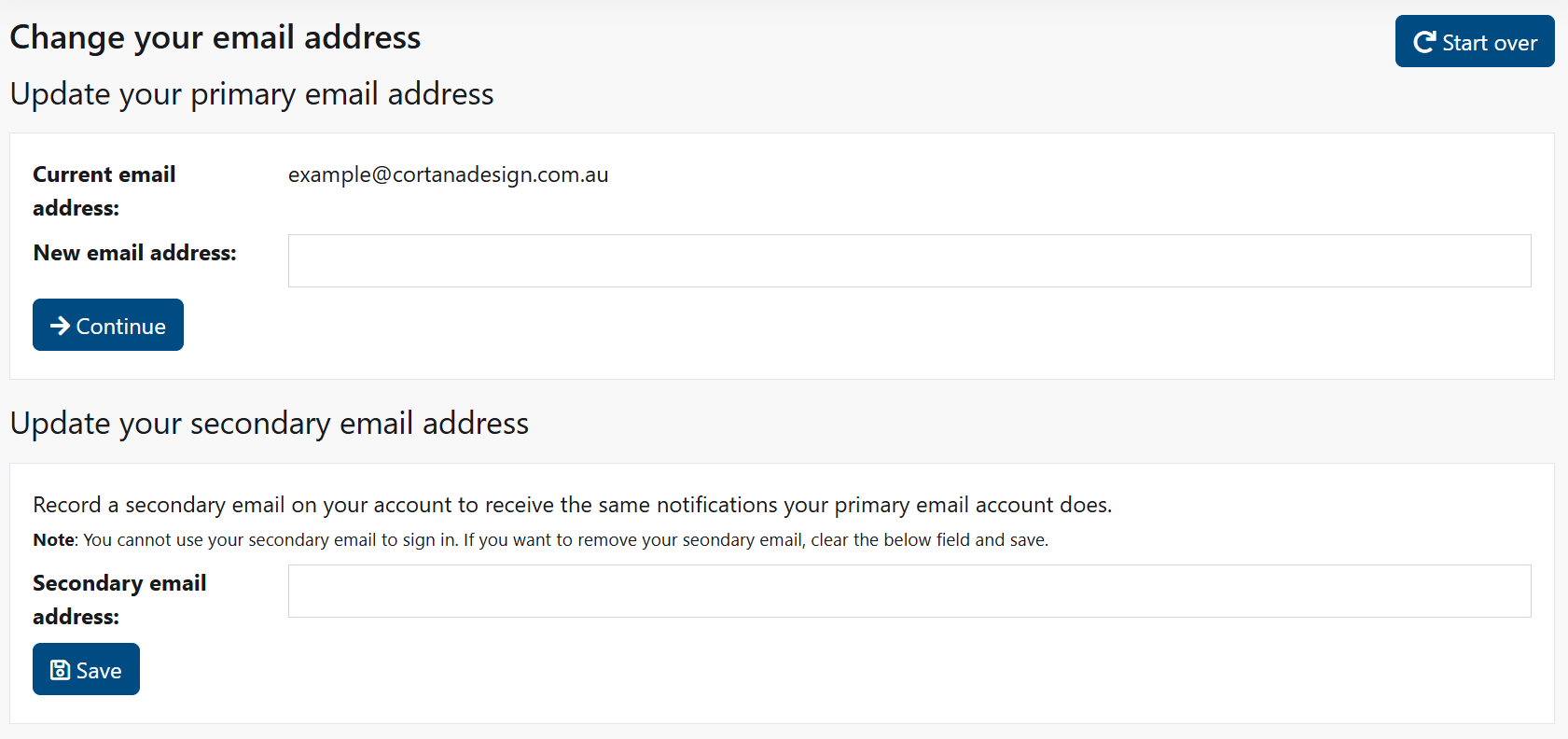
Change your primary email address or add a secondary email for notifications. Your primary email is used for login and account correspondence.
How to Access: Click My Account then Update email address
Important
Changing your primary email requires your current password to authorize the change. Secondary emails are optional and don't require a password.
Change Your Primary Email Address
Your primary email is used for:
- Logging into the system
- Receiving password reset emails
- Important account notifications
- System correspondence
Steps to Change Primary Email
- Click My Account → Update email address
- Your current email displays in the "Current email address" field
- Enter your new email in the New email address field
- Click Continue
- If the email is available, you'll see a password confirmation section
- Enter your current password to authorize the change
- Click Update
- Result: "Email address has been changed to [new email]"
What Happens Behind the Scenes
sequenceDiagram
    actor User
    participant System
    participant Database
    participant Email

    User->>System: Enter new email + Click Continue
    System->>System: Validate email format
    System->>Database: Check if email exists
    alt Email already in use
        System-->>User: Error: "Email already exists"
    else Email available
        System-->>User: Show password confirmation section
        User->>System: Enter current password + Click Update
        System->>System: Verify password
        alt Password incorrect
            System-->>User: Error: "Password is not correct"
        else Password correct
            System->>Database: Update email + rehash password
            System->>Email: Send confirmation to both old and new email
            Email-->>User: Confirmation email delivered
            System-->>User: "Email address has been changed"
            System->>System: Log the change
        end
    end
Form Fields
Current email address
- Shows your existing email (read-only)
- Cannot be changed directly
New email address (required)
- Enter your new email address
- Must be in valid email format (example@domain.com)
- Cannot be an email already used by another account
Continue button
- Submits your new email address
- Checks if the email is available
- Shows password confirmation if available
Current Password (required when changing)
- You must enter your current password to authorize the change
- Required for security
Update button
- Confirms the email change
- Uses your password to update the system
Email Format Rules
Your email must follow standard format:
Valid Examples:
- firstname.lastname@company.com
- user@gmail.com
- first_last@organization.org
Invalid Examples:
notanemail❌ (no @ symbol)user @company.com❌ (space in address)missing@domain❌ (no extension)
Add or Update Secondary Email
A secondary email receives the same notifications as your primary email but cannot be used for login.
Add Secondary Email
- Scroll to the Update your secondary email address section
- Enter an email address in the field
- Click Save
- Result: "Secondary email address updated"
Note
Secondary email setup is immediate - no password or verification required.
Remove Secondary Email
- In the Update your secondary email address section, clear the field completely
- Click Save
- Result: Secondary email is removed from your account
Secondary Email Rules
- Optional - you don't have to add one
- Cannot be used for login
- Receives duplicate notifications of your primary email
- Must be in valid email format if you add one
Troubleshooting
Error: "Email address already exists in the user database"
What This Means: Another account is already using this email address.
How to Fix: 1. Use a different email address 2. If you have multiple accounts, use separate emails for each 3. Contact your administrator if the email should be yours
Error: "Not a valid email address"
What This Means: The email format is incorrect.
How to Fix:
1. Make sure your email has an @ symbol
2. Include the domain (gmail.com, company.org, etc.)
3. Check for typos
4. Don't include spaces
Format: firstname.lastname@example.com
Error: "Existing password is not correct"
What This Means: The password you entered doesn't match your account password.
How to Fix: 1. Make sure Caps Lock is off 2. Re-enter your password carefully 3. Try again 4. If you forgot your password, click Forgot password to reset it before trying to change your email
What Happens After You Change Your Email
After you successfully change your primary email:
- Confirmation emails are sent to both your old and new email addresses
- Next login - You can use your new email to log in
- Password reset emails will now go to your new address
- System notifications will go to your new email
- Your secondary email (if you have one) will still receive duplicate notifications
Email Change Workflow Diagram
graph TD
    A["1. Go to<br/>My Account"] --> B["2. Click<br/>Update email"]
    B --> C["3. Enter new<br/>email address"]
    C --> D["4. Click<br/>Continue"]
    D --> E{Email<br/>available?}
    E -->|No| F["Error:<br/>Email exists"]
    F --> C
    E -->|Yes| G["Show password<br/>confirmation"]
    G --> H["5. Enter current<br/>password"]
    H --> I["6. Click<br/>Update"]
    I --> J{Password<br/>correct?}
    J -->|No| K["Error:<br/>Wrong password"]
    K --> H
    J -->|Yes| L["✓ Email updated"]
    L --> M["Confirmation<br/>emails sent"]
Common Questions
Will my account be locked during the change?
No. You stay logged in the whole time. The change happens immediately after you verify your password.
Can I use my new email to log in right away?
Yes. After the change is complete, you can use your new email address to log in on your next visit.
Do confirmation emails actually get sent?
Yes. Your old email and new email both receive a confirmation that the change was made. This helps you know if someone else tried to change your email.
What if I add a secondary email and then change my primary email?
Your secondary email remains and continues to receive notifications. You can change either one at any time independently.
Can I use the same email for primary and secondary?
No. You cannot duplicate your primary email as a secondary email.
Best Practices
Email Management:
- ✅ Use an email address you check regularly
- ✅ Keep your password secure (don't share it)
- ✅ Update your email before old account closes
- ✅ Remove secondary email if you stop using it
Security:
- ✅ Remember your current password before changing email
- ✅ Verify both confirmation emails were received
- ✅ Don't share your email login credentials
- ✅ Use a strong password
Related Pages
- Change Password - Update your account password
- Update Profile - Change personal information
- Profile Management - Manage all account settings
- Forgot Password - Reset your password