Admin: Depth Charting Overview
Access Level
Selector can view rankings and coverage, set manual rank order, and enter subjective scores. Owner can also run full recalculation.
Overview
Use Overview to manage the cross-grade ranking list for a season.
This page shows:
- Overall rank order across all grades
- Each official's best grade and depth score
- Grade coverage summary
- Manual rank movement (for selectors)
How to Access
From the sidebar, expand Depth Charting, then click Overview.
Before You Start
- Select a season from the Season list before using the table.
- If no rankings appear, run a recalculation first (Owner access required).
- Subjective scoring buttons appear only when your group has active subjective metrics.
Page Sections
Grade Coverage
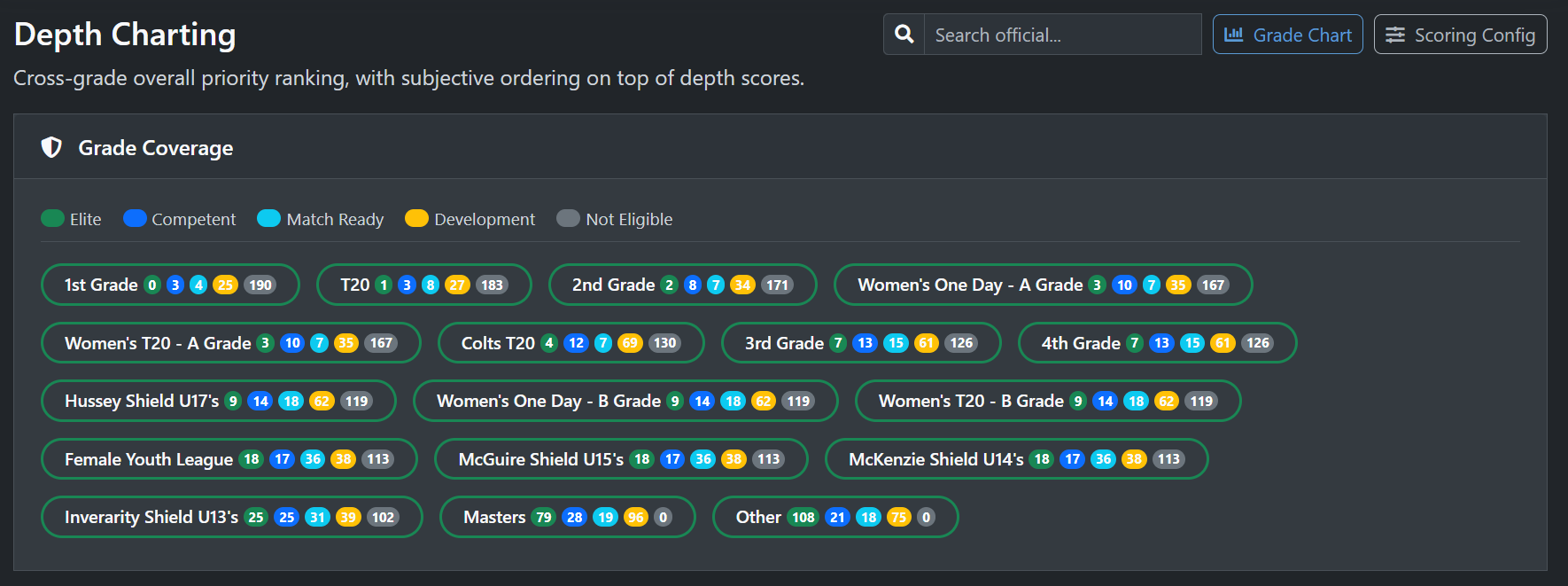
The Grade Coverage panel shows one chip per grade with tier counts.
- Click a grade chip to open that grade in Grade Chart
- Border colours show coverage health at a glance
Overall Ranking
The Overall Ranking table shows:
- Rank
- Official
- Best Grade
- Depth Score
- Subgroups
- Subjective Scoring (selectors only, when metrics exist)
Search Official
Use Search official... in the page header to find an official in the current season table.
- Type at least 2 characters
- Click a result to jump to and highlight that row
Fields and Inputs
Season, required
- Chooses which season rankings and coverage are loaded
Bulk Score: Metric, required
- Selects which subjective metric score to apply
Bulk Score: Score (0-100), required
- Must be between 0 and 100
Bulk Score: Notes, optional
- Adds optional notes with the score
Bulk Score: Apply to, required
- All grades applies to each selected official in all grades they are ranked in
- Best grade only applies only to each selected official's best grade
Common Tasks
Load Overview for a Season
- Open Depth Charting > Overview.
- Select a value in Season.
- Wait for the ranking table and coverage chips to load.
- Result: You see the season's overall ranking and grade coverage.
Enter Subjective Scores for One Official (Selector)
- In the official row, click Edit in Subjective Scoring.
- Enter score values in Score (0-100).
- Add optional notes.
- Click Save Scores.
- Result: Scores are saved for that official and a confirmation appears.
Bulk Apply Subjective Score (Selector)
- Click Bulk Score.
- Select Metric.
- Enter Score (0-100).
- Choose All grades or Best grade only.
- Tick one or more officials.
- Click Apply Score.
- Result: The score is applied to selected officials.
Reorder Overall Ranking (Selector)
- Drag rows using the handle at the left of each row.
- Drop each row in your preferred order.
- Result: Order saves automatically and a success message appears.
Reset Manual Overall Ordering (Selector)
- Click Reset Order.
- Confirm the prompt.
- Result: Manual order is removed and ranking returns to automatic score order.
Export Overall Ranking
- Select a season.
- Click Export CSV.
- Result: The season's overall ranking downloads as a CSV file.
Recalculate All Grades (Owner)
- Click Recalculate.
- Wait for progress to finish for each grade.
- Result: Rankings are rebuilt and the page refreshes with new results.
Validation and Rules
- Search requires at least 2 characters
- Bulk score must be between 0 and 100
- At least one official must be selected for bulk score
- Manual ordering is available to selectors only
Troubleshooting
No depth chart data for this season yet
Symptoms
The page shows no ranking rows for the selected season.
How to Fix
- Confirm the correct Season is selected.
- If you have Owner access, click Recalculate.
- Reload the page after recalculation completes.
Common Causes
- Rankings have not been calculated yet for that season
- The selected season has no eligible data yet
Bulk score will not save
Symptoms
You see a warning when applying a bulk score.
How to Fix
- Enter a score from 0 to 100.
- Tick at least one official.
- Confirm a metric is selected.
Common Causes
- Score is blank or outside range
- No officials were selected
Related Pages
- Admin: Grade Depth Chart, manage one grade in detail
- Admin: Score Breakdown, view per-factor scoring for one official
- Admin: Depth Scoring Config, configure weights, tiers and metrics
How to Access
From the sidebar, expand Depth Charting.