Admin: Depth Scoring Config
Access Level
Owner access required.
Selector can manage ranking actions in depth chart pages but cannot change scoring configuration.
Overview
Use Scoring Config to control how depth scores and tiers are calculated for your group.
This page lets you manage:
- Grade prestige weight
- Scoring weights and tier thresholds
- Subgroup inclusion and subgroup weight
- Subjective metrics
- Tier names and colours
How to Access
From the sidebar, expand Depth Charting, then click Scoring Config.
Before You Start
- Changes here affect depth chart behaviour across the group.
- Use Save buttons in each tab after editing.
- For scoring weights, totals must equal 100 before saving.
Tab: Grade Prestige
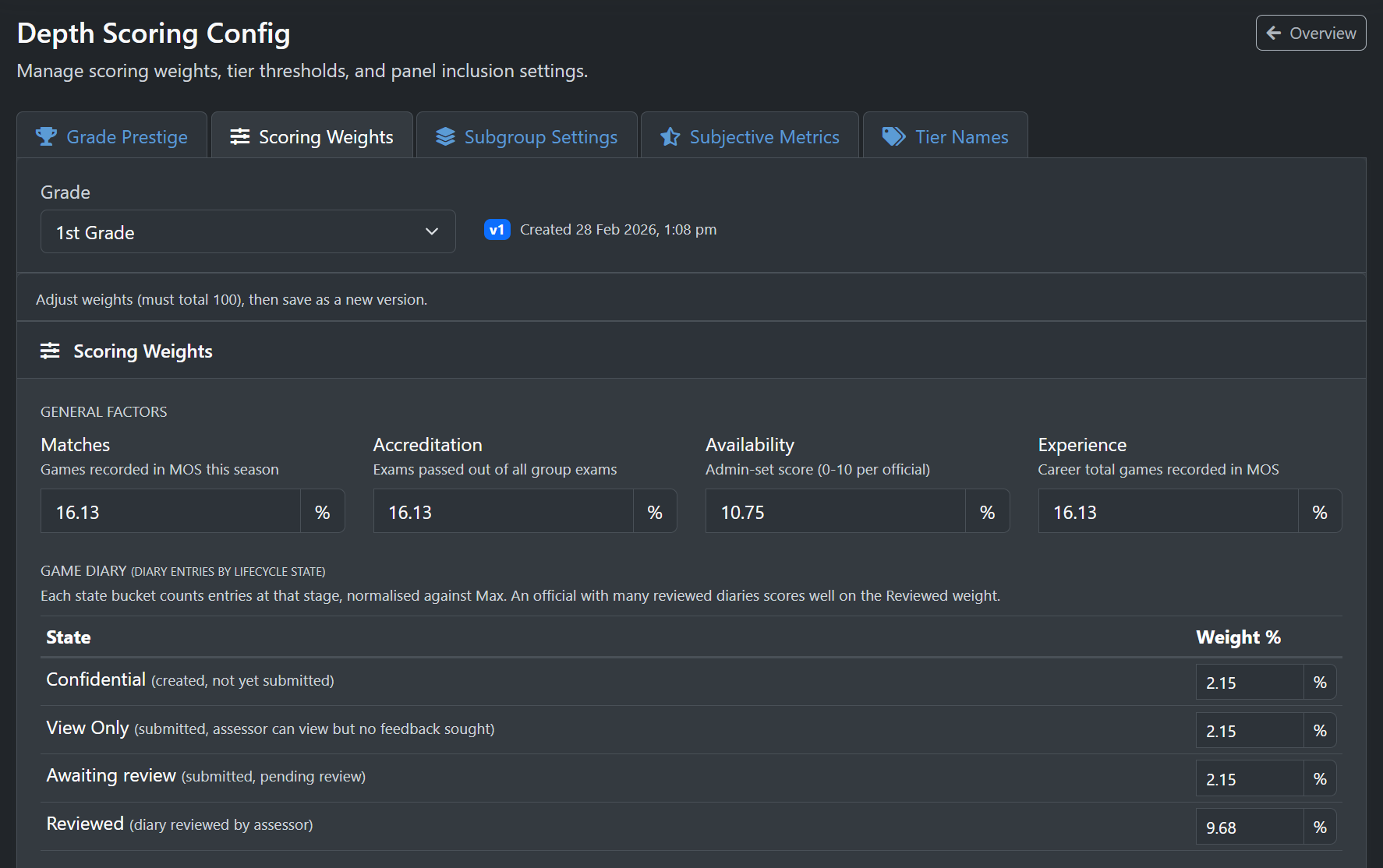
Use this tab to set each grade's Level Weight.
Fields
Level Weight, required
- Range: 0.1 to 10
- Higher values increase a grade's influence in cross-grade ranking
Task: Save Grade Prestige Weight
- Open Grade Prestige.
- Enter a Level Weight for a grade.
- Click Save in that row.
- Result: Prestige weight is saved.
Tab: Scoring Weights
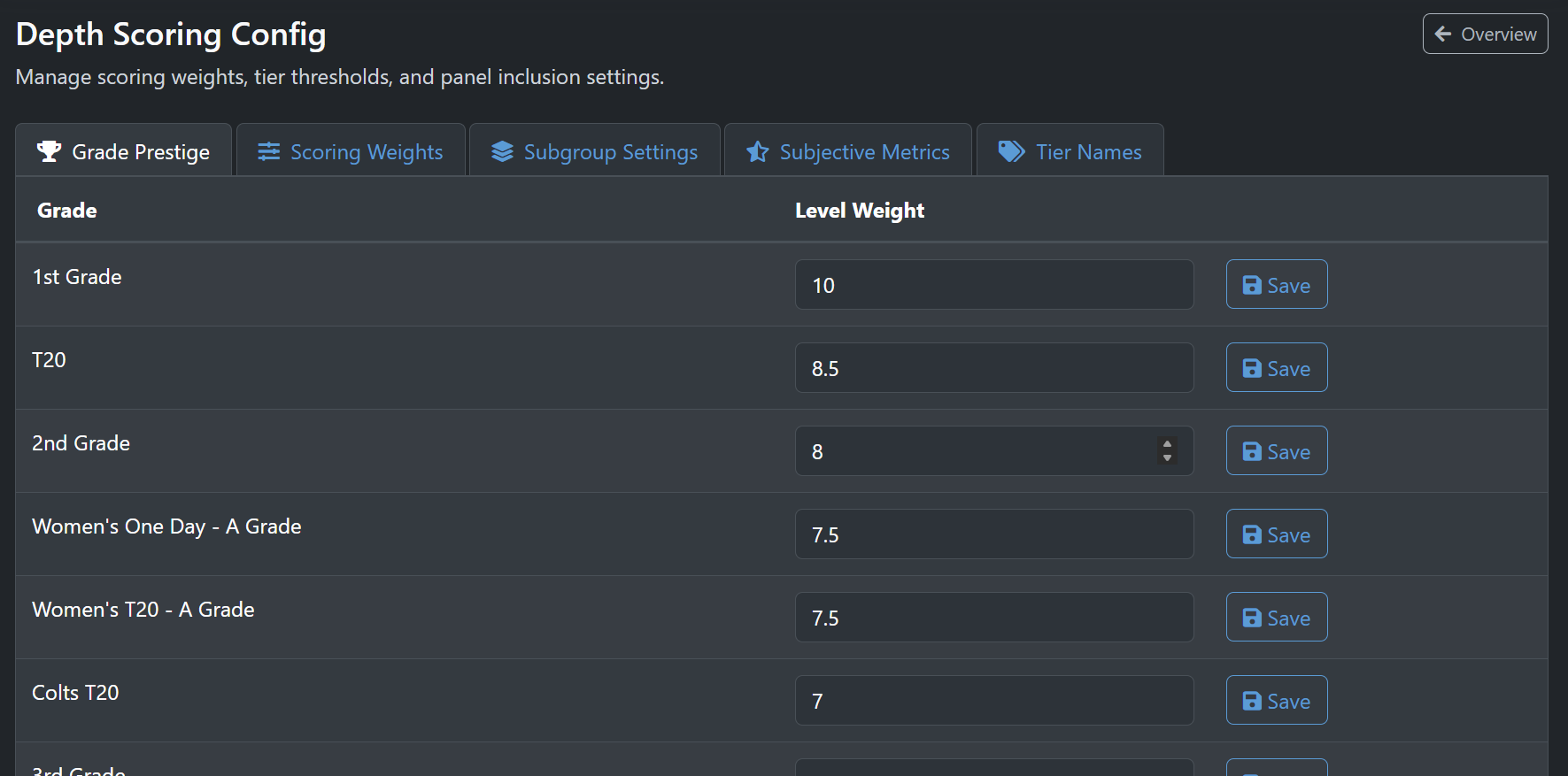
Use this tab to set per-grade scoring rules.
Fields
Grade, required
- Selects which grade config you are editing
Weight fields, required
- All enabled weight fields together must total exactly 100
Tier thresholds, required
- Must follow descending order: Tier 1 > Tier 2 > Tier 3 > Tier 4
Auto-scale thresholds by grade prestige, optional
- When enabled, lower-prestige grades use scaled threshold values
Important Rules
- Disabled lifecycle/feedback factors show as Disabled - 0 pts earned
- Disabled factors are set to zero and cannot be edited
- Balance redistributes enabled weights to total 100, then saves
- Save as New Version creates a new scoring config version
Task: Save Scoring Weights and Thresholds
- Open Scoring Weights.
- Select a grade in Grade.
- Update weights as required.
- Confirm total shows Valid at 100.
- Set tier thresholds in descending order.
- Click Save as New Version.
- Result: New scoring config version is saved for that grade.
Tab: Subgroup Settings
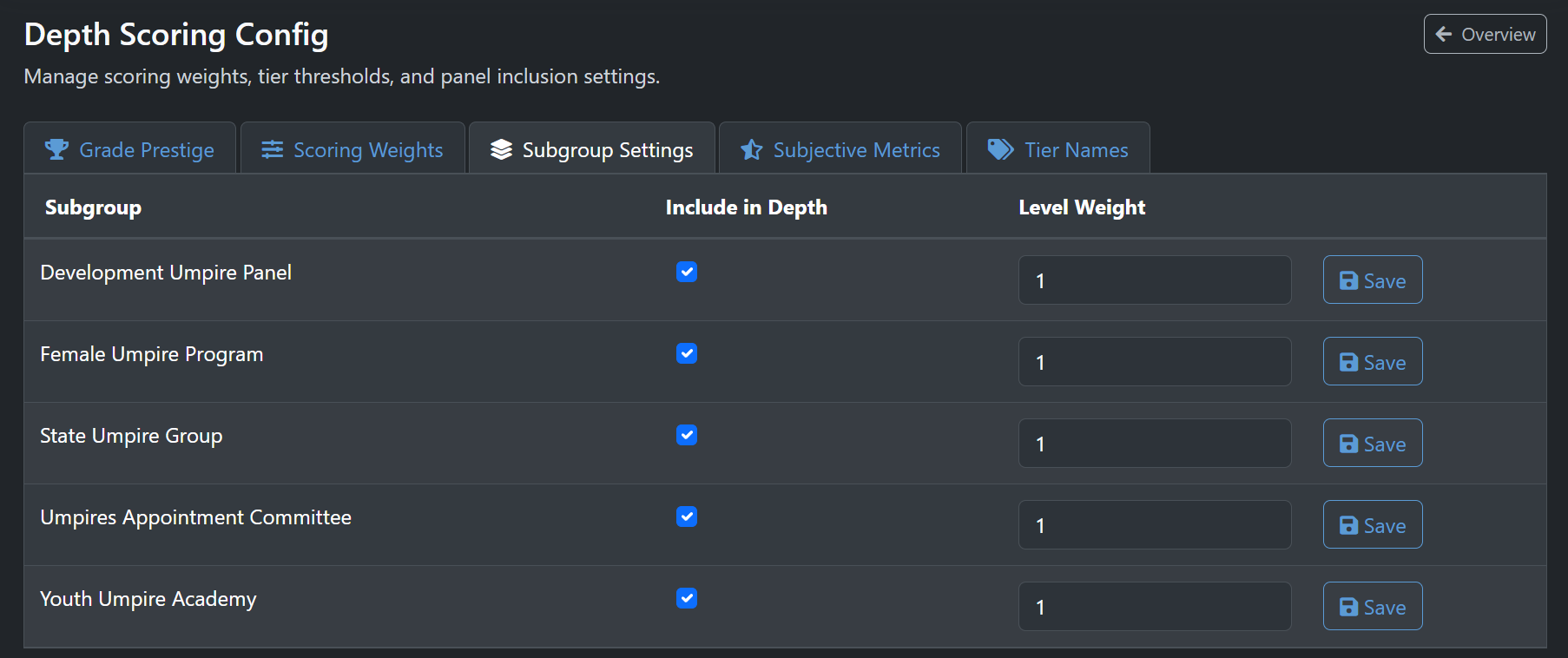
Use this tab to control subgroup inclusion in depth charting.
Fields
Include in Depth, required
- Turn on to include the subgroup in depth charting
Level Weight, required
- Range: 0.1 to 10
- Disabled when Include in Depth is off
Task: Save Subgroup Settings
- Open Subgroup Settings.
- Set Include in Depth for a subgroup.
- Enter Level Weight.
- Click Save in that row.
- Result: Subgroup setting is saved.
Tab: Subjective Metrics
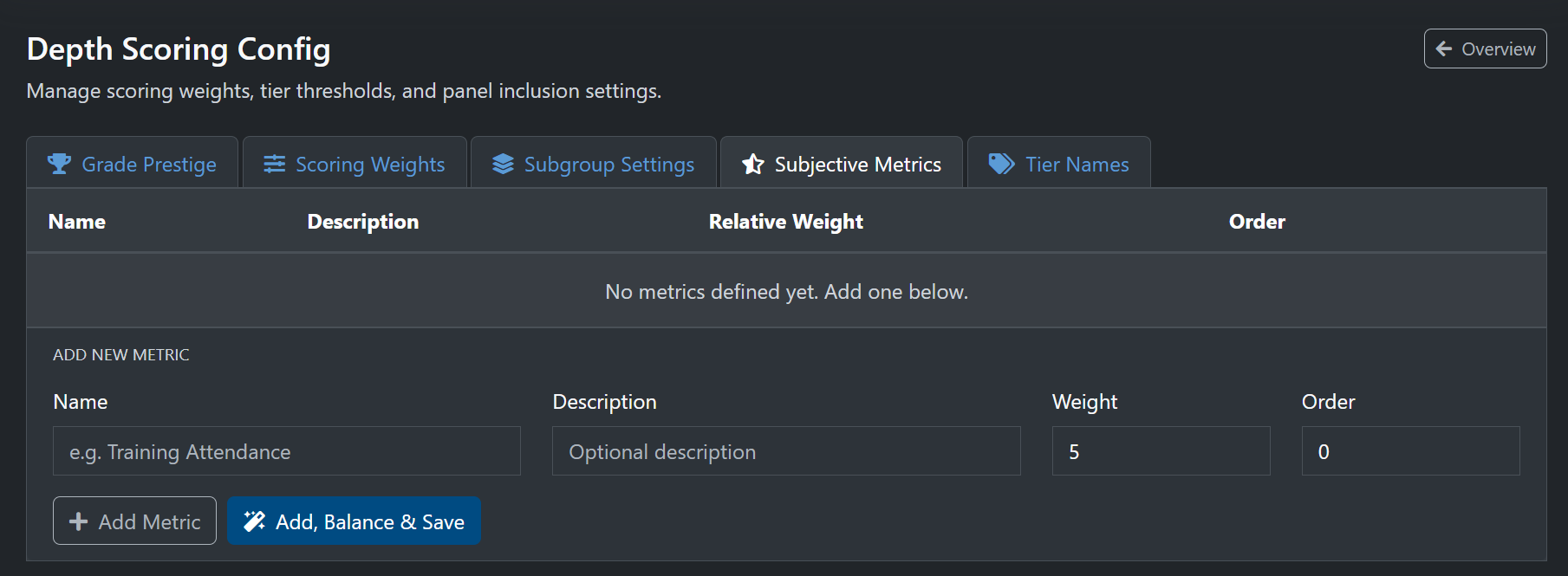
Use this tab to manage subjective scoring criteria.
Fields
Name, required
- Metric name must not be blank
Description, optional
- Clarifies what the metric measures
Weight, required
- Must be greater than 0
Order, optional
- Controls display order
Task: Add a Metric
- Open Subjective Metrics.
- Enter Name.
- Enter optional Description.
- Enter Weight and Order.
- Click Add Metric.
- Result: Metric is added. Update per-grade scoring weights and save new config versions as needed.
Task: Add Metric and Update All Grade Configs
- Fill in the new metric fields.
- Click Add, Balance & Save.
- Result: Metric is added and all grade configs are updated.
Task: Remove a Metric
- Click the delete button for the metric.
- Confirm removal.
- Result: Metric is removed from active use.
Tab: Tier Names
Use this tab to rename tier labels and choose tier colours used across depth pages.
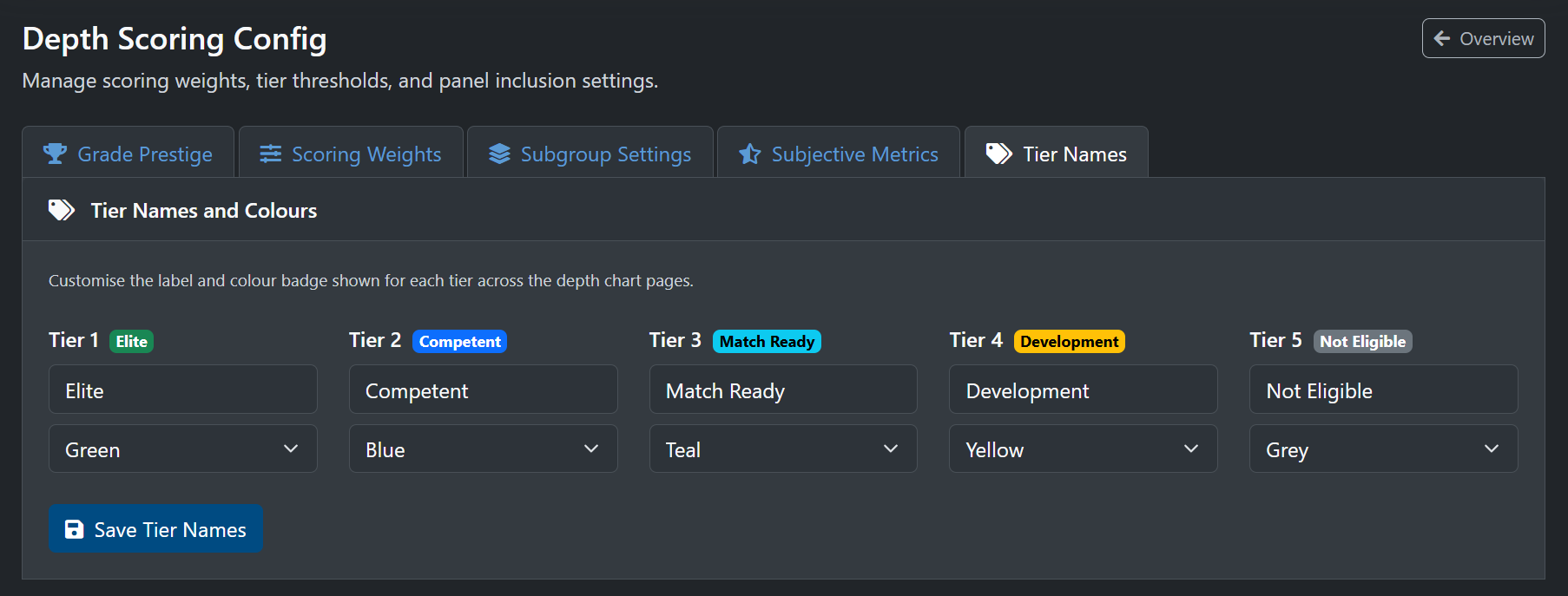
Fields
Tier name, required
- All five tier names must be filled in
Tier colour, required
- Choose from the provided colour list
Task: Save Tier Names
- Open Tier Names.
- Update names and colours.
- Click Save Tier Names.
- Result: New tier names/colours are applied across depth chart pages.
Validation and Rules
- Level weight must be between 0.1 and 10
- Weight total must equal exactly 100 before saving a config
- Tier thresholds must be descending (Tier 1 > Tier 2 > Tier 3 > Tier 4)
- Subjective metric name is required
- Subjective metric weight must be greater than 0
- All tier names are required before saving
Troubleshooting
Cannot save scoring config
Symptoms
Save fails with a validation message.
How to Fix
- Confirm all enabled weight fields total exactly 100.
- Confirm thresholds are descending (Tier 1 highest).
- Try Balance, then save again.
Common Causes
- Weight total is not 100
- Tier thresholds are out of order
Cannot save prestige or subgroup weight
Symptoms
You see a level weight error.
How to Fix
- Enter a value between 0.1 and 10.
- Click Save again.
Common Causes
- Value is below 0.1 or above 10
Metric actions fail
Symptoms
Metric add/update/remove does not complete.
How to Fix
- Check metric Name is filled in.
- Ensure Weight is greater than 0.
- Retry and refresh the tab.
Common Causes
- Missing metric name
- Invalid metric weight
Related Pages
- Admin: Depth Charting Overview, view cross-grade ranking results
- Admin: Grade Depth Chart, apply grade-level manual overrides
- Admin: Score Breakdown, review factor-by-factor scores
How to Access
From the sidebar, expand Depth Charting.