News
Overview
Read news articles and announcements from your association or groups you belong to. All articles show the title, author, when they were last updated, and any attachments.
How to Access: Click News
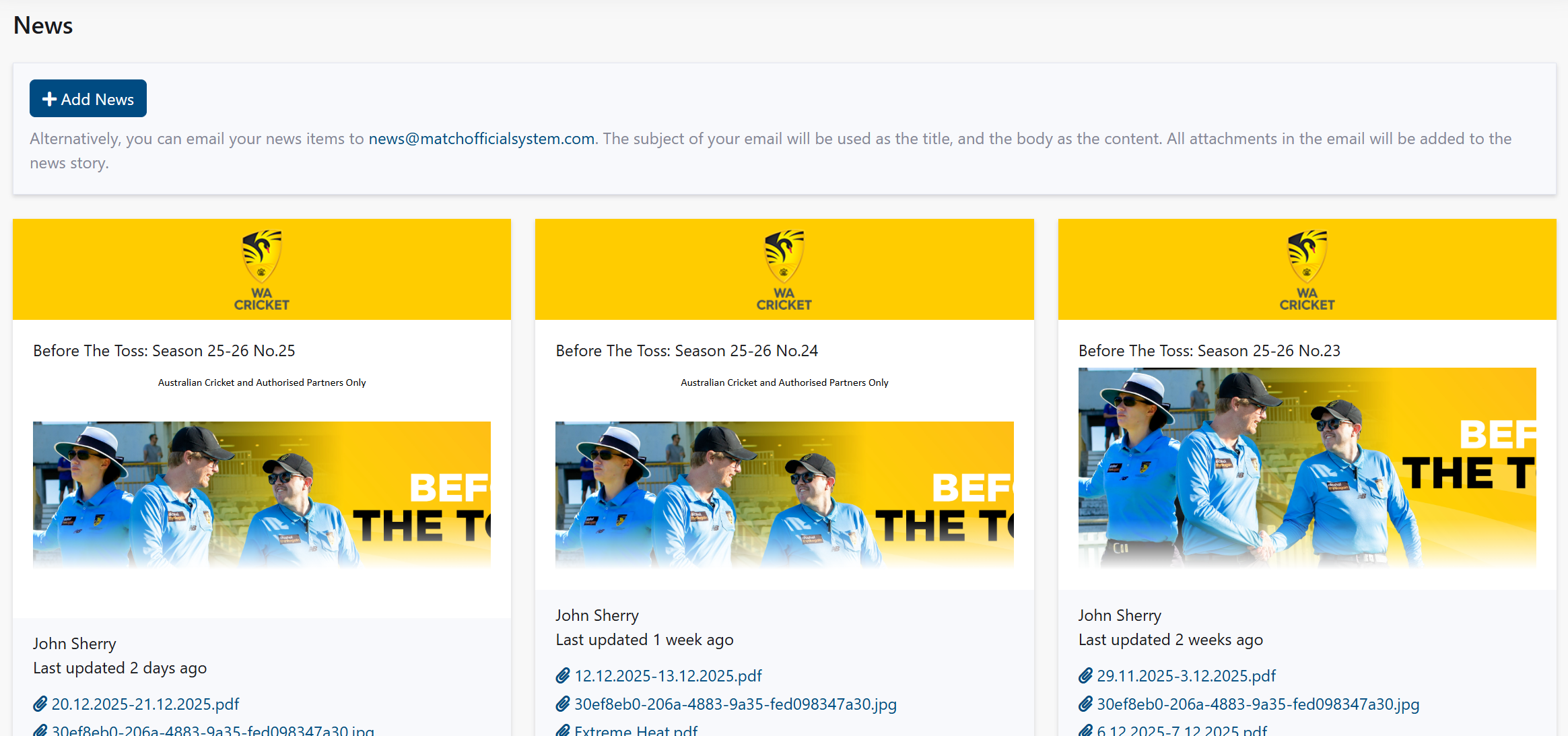
Understanding the News Page
News articles appear as cards showing:
- Association or group name and logo
- Article title
- Author name
- Last updated time
- Attachments (if any)
Articles display newest first. You only see articles posted to your association and subgroups you're a member of.
Wide Content
Some articles contain wide content such as tables, embedded media, or images that are wider than your screen. When content is too wide to display:
- A horizontal scroll bar appears at the bottom of the article
- Drag the scroll bar or swipe left and right to view all content
- The scroll bar is styled for visibility on the page
Reading Articles
How to Read an Article
- On the News page, find the article you want to read
- Click Read more
- Result: The full article opens with complete content and attachments
How to View More Articles
- Scroll to the bottom of the news list
- Click Show more
- Result: Additional articles load below
How to Download Attachments
- Open an article by clicking Read more
- Look for attachment links at the top of the article
- Click the attachment link
- Result: The file downloads to your device
Related Pages
- Admin: News Management: Create and publish articles as an administrator
- Home: View recent news on your dashboard